Fitness, Workout plans
Rotate through a training split with routine folders
Put a split in a folder, see how Fitness Today picks the next routine, and know what moves your place in the rotation.
In brief
In Moodwell, a folder of routines is a rotation. The routines run in folder order, and Fitness Today suggests the one after the routine you last started. Starting a routine moves your place; finishing it doesn’t change anything further. Starting a later routine skips the ones in between instead of saving them for later.
A folder is the rotation
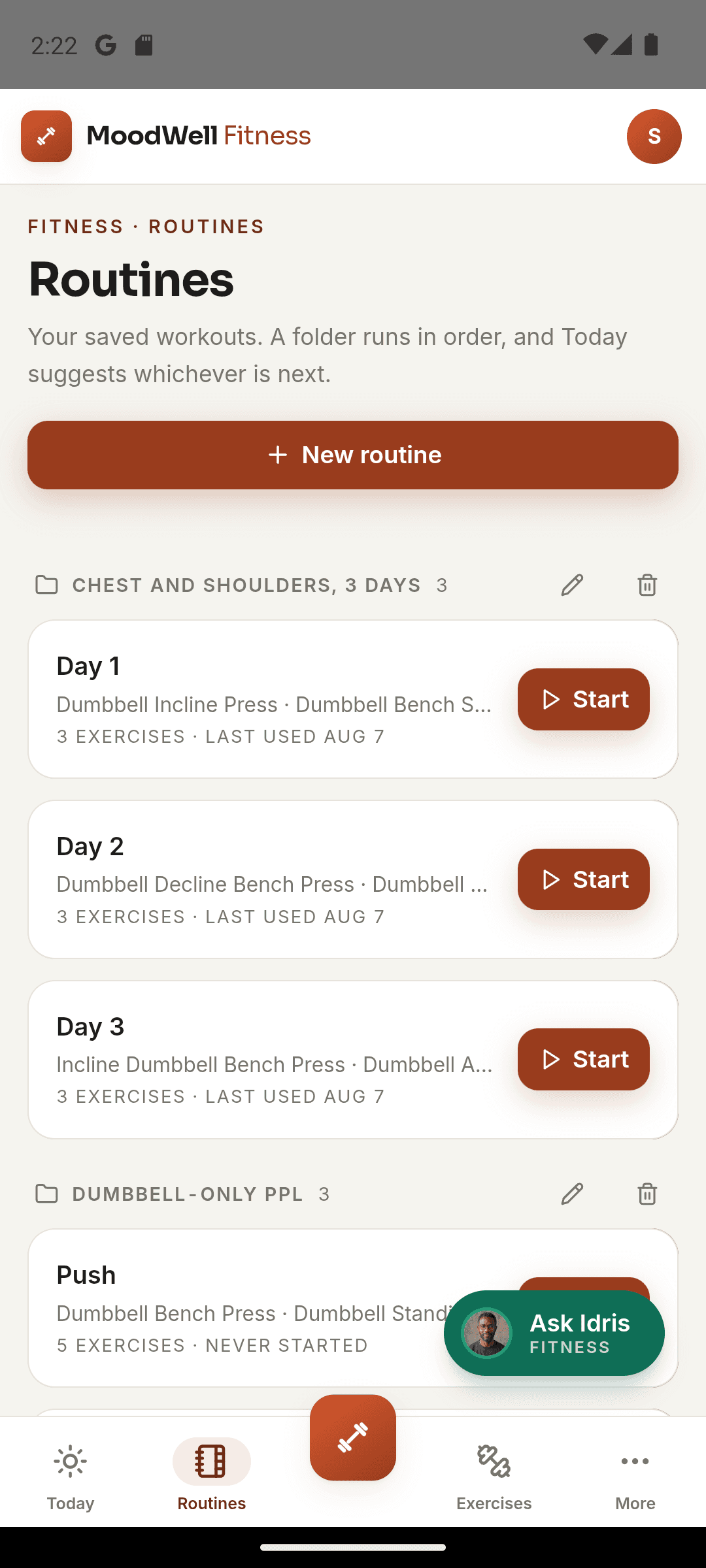
There is no rotation setting to turn on. Every folder on the Routines screen runs in order, and each folder keeps its own place. Starting a routine from one folder never moves your place in another, so a gym split and a home split can sit side by side.
Routines that aren’t in a folder are not a rotation. For those, Today suggests the one you started most recently, or the one whose muscles have had the most rest once you have recent training logged.
Set up your split as a folder
Routines run in the order they joined the folder. A new routine goes to the end, and so does a routine you move in. Build the folder in the order you plan to train.
- 1
Create the folder
On the Routines screen, tap New folder and give it a name you will recognize, such as PPL.
- 2
Add routines in running order
Create each routine and choose the folder in its Folder setting, starting with the session you will do first.
- 3
Or start from a program
In New routine, choose Use a proven program. The program arrives as a folder of routines in its own order, free of credits.
- 4
Check the order
Look at the folder on the Routines screen. To move a routine to the back, set it to Not in a folder and then return it to the folder.
Know what moves your place
Your place moves when you start a saved routine, whether you start it from the Routines screen, the routine page, the plan or the coach. Finishing the workout adds nothing more. Discarding a workout doesn’t move you back, and an empty workout or an AI-generated session doesn’t move you at all.
If you start a routine out of order, the rotation continues from the one you started. Starting C when B was next makes D next. B is skipped, not saved for later. That is usually what you want after a schedule change, but it is worth knowing before you start a session out of turn.
Read the Next in your program card
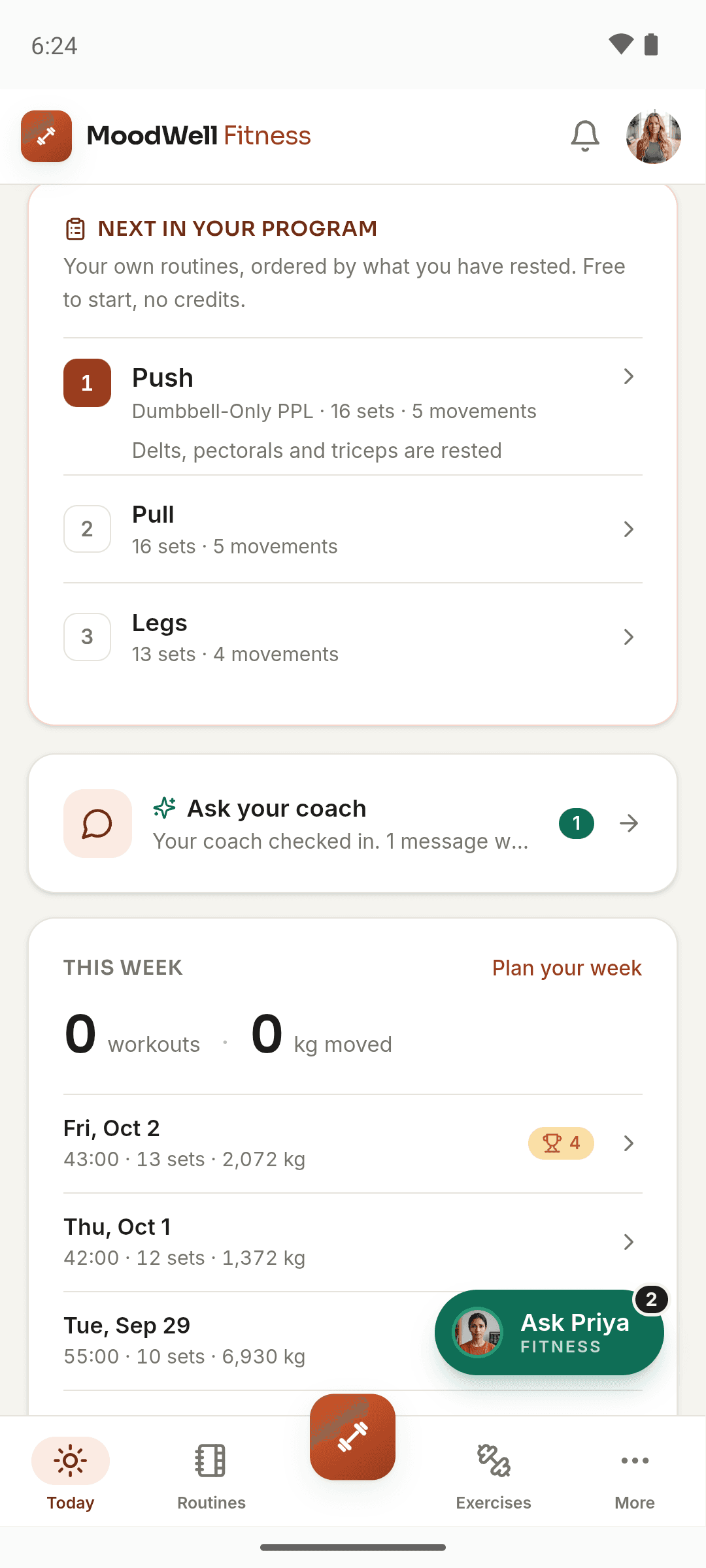
Fitness Today shows a card called Next in your program. The suggested routine is numbered 1, followed by the rest of that folder’s cycle in order. Below it, Your other programs lists your other folders with how long it has been since you used each one. Starting a suggested routine is free and uses no credits.
When you have recent sets logged, the card orders your programs by how rested the muscles in each one’s next routine are. It sticks with the program you are currently running unless another is clearly better rested. A short line, such as “Quads, hamstrings and glutes are rested”, says why. That judgement comes from when you last trained each muscle and how much you did. It does not use soreness, heart rate or sleep data.
Keep the rotation and your schedule apart
The Next in your program card follows the rotation, not your calendar. It still suggests the next routine on a day you meant to rest. If you are not training, use Not training today? on Today to mark a rest day. Moodwell never counts a rest day as a miss.
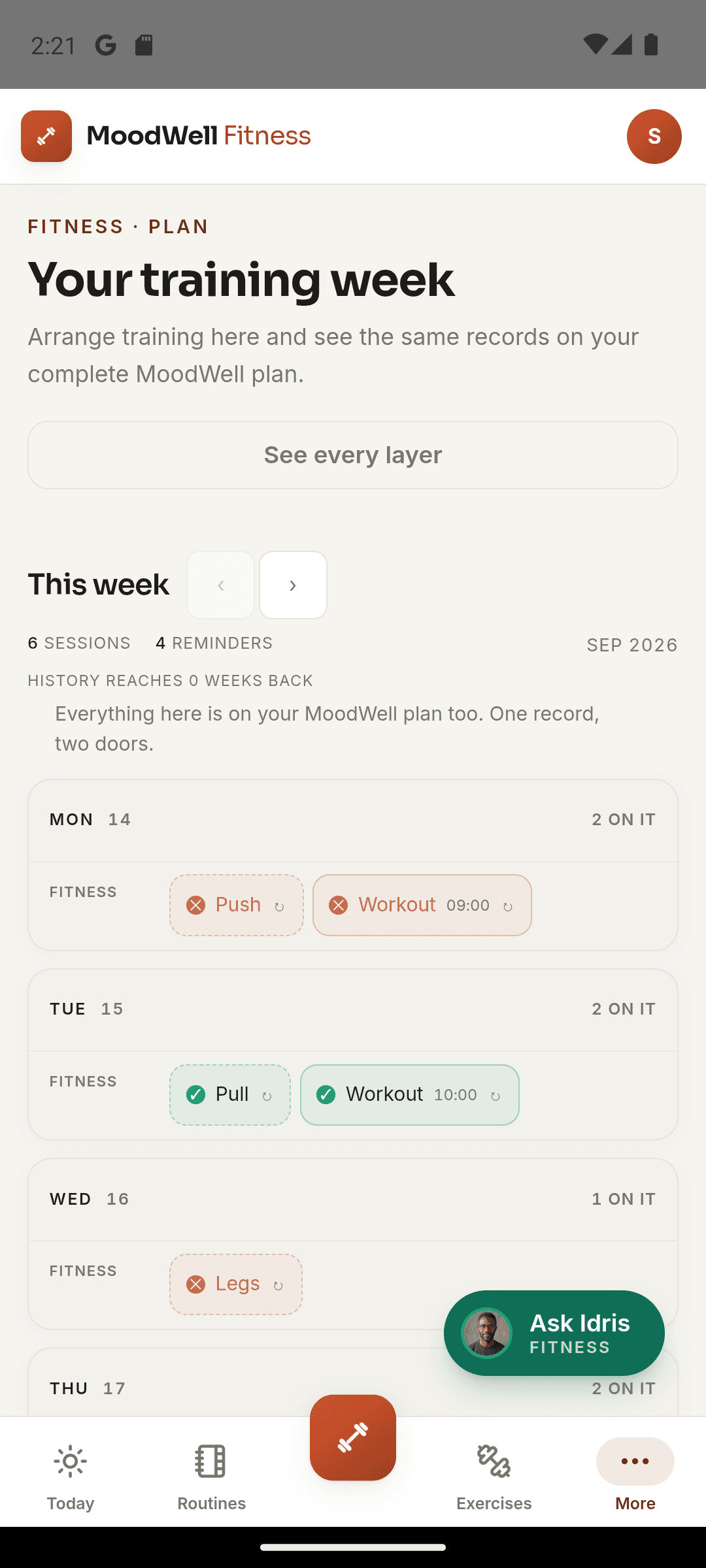
If you want a fixed weekday, such as legs every Tuesday, schedule it in Plan by choosing A routine, then Weekly under How often. On that date, the plan shows the routine you scheduled.
Example: a push, pull, legs week that changes
Say you keep a folder called PPL with Push, Pull and Legs in that order. You started Push on Monday and Pull on Wednesday, so on Friday Today suggests Legs. You decide you would rather train upper body, so you start Push from the Routines screen.
The rotation now continues from Push, so Pull is next and Legs waits a full cycle. If you would rather keep Legs at the front, start Legs on your next training day. Either way, Today reflects the last routine you started, so the card always matches what you actually did.
Related Moodwell feature
Keep a training split in order
Organize routines into folders and let Fitness Today suggest the next session in each one.
Explore workout plans