Fitness, AI wellbeing coach
Ask the Fitness coach questions your training log can answer
Open the coach, know what it can and cannot see, ask a specific question, and review any proposed change before you apply it.
In brief
Tap the Ask button on any Fitness screen to open your coach. It answers from your own log: the last 30 days of sessions, recovery, effort answers and records, plus your schedule and profile. Replies use AI credits. When the coach proposes a change, nothing is saved until you tap Apply.
Open the coach from where you are
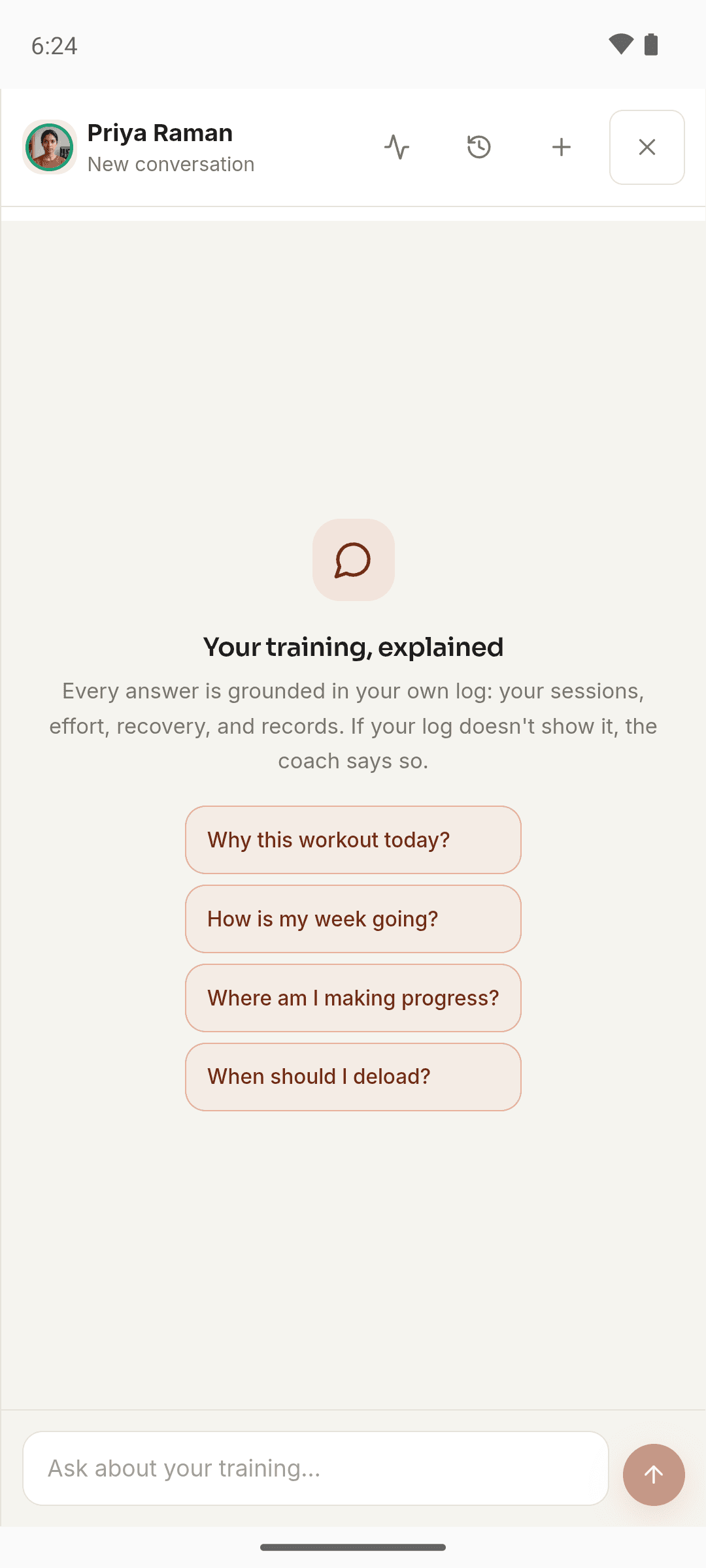
Every Fitness screen has a floating button named after your coach, such as Ask Nell, with FITNESS underneath. It opens the coach in a drawer, so you don’t lose your place. Fitness Today also has an Ask your coach card, and each exercise in the library has Ask Coach about this movement, which fills in a question about that exercise for you to send.
A new conversation offers a few ways to start, such as “Why this workout today?”, “How is my week going?” or “When should I deload?”. Tapping one sends it straight away, so it uses credits like any other message.
Know what the coach can see
The coach builds its picture fresh for every reply. From Fitness, it gets:
- Your goal, experience, training schedule, session length, units and latest body weight.
- This week’s workouts and today’s suggested routine, with the reason it was picked.
- How rested each muscle is, judged from your sets over the last 10 days.
- Your answers to the effort question over the last three weeks.
- The last 30 days in summary: sessions, working sets, volume, records, sets by muscle, your top movements’ best estimated one-rep max, and your recent session notes.
- Your five most recent workouts, the body parts and movements you’re avoiding, and any commitments you made with the coach.
It also sees your daily calorie and protein averages if you share Nutrition with other layers (Nutrition settings, Cross-layer analysis), your body-weight trend, recent mood check-in averages, supplement names from Health, and a few short summaries of recent activity elsewhere in Moodwell. If you connect Health Connect, it sees last night’s sleep, resting heart rate, HRV, steps, and workouts recorded by other apps.
Know what stays out of view
Prescriptions, GLP-1 and peptide records never reach the coach, not even their names. Neither do your individual meals, body measurements, the dated week in Plan, or the set-by-set detail of past workouts. The coach works from session totals and summaries. Your choice of coach changes how answers are written, not what the coach can see.
Every answer is meant to come from that picture. If your log doesn’t show something, the coach should say so rather than guess, so tell it what it’s missing. “I also ran twice this week, but I log runs elsewhere” gives it a fairer starting point.
Ask a question your log can answer
Broad questions get broad answers. Name the movement, the time window, or the decision you are trying to make.
- 1
Name the subject
Ask about a lift, a muscle group, or this week, rather than “my training” in general.
- 2
Give the window
The coach reads the last 30 days in detail. Ask within that range, or tell it about anything older.
- 3
Say what you want to decide
For example, “Should I keep adding weight to my squat, or hold it for a week?”
- 4
Check the answer against your log
Open the sessions it mentions and make sure the reasoning fits what actually happened.
Review a proposed change before applying it
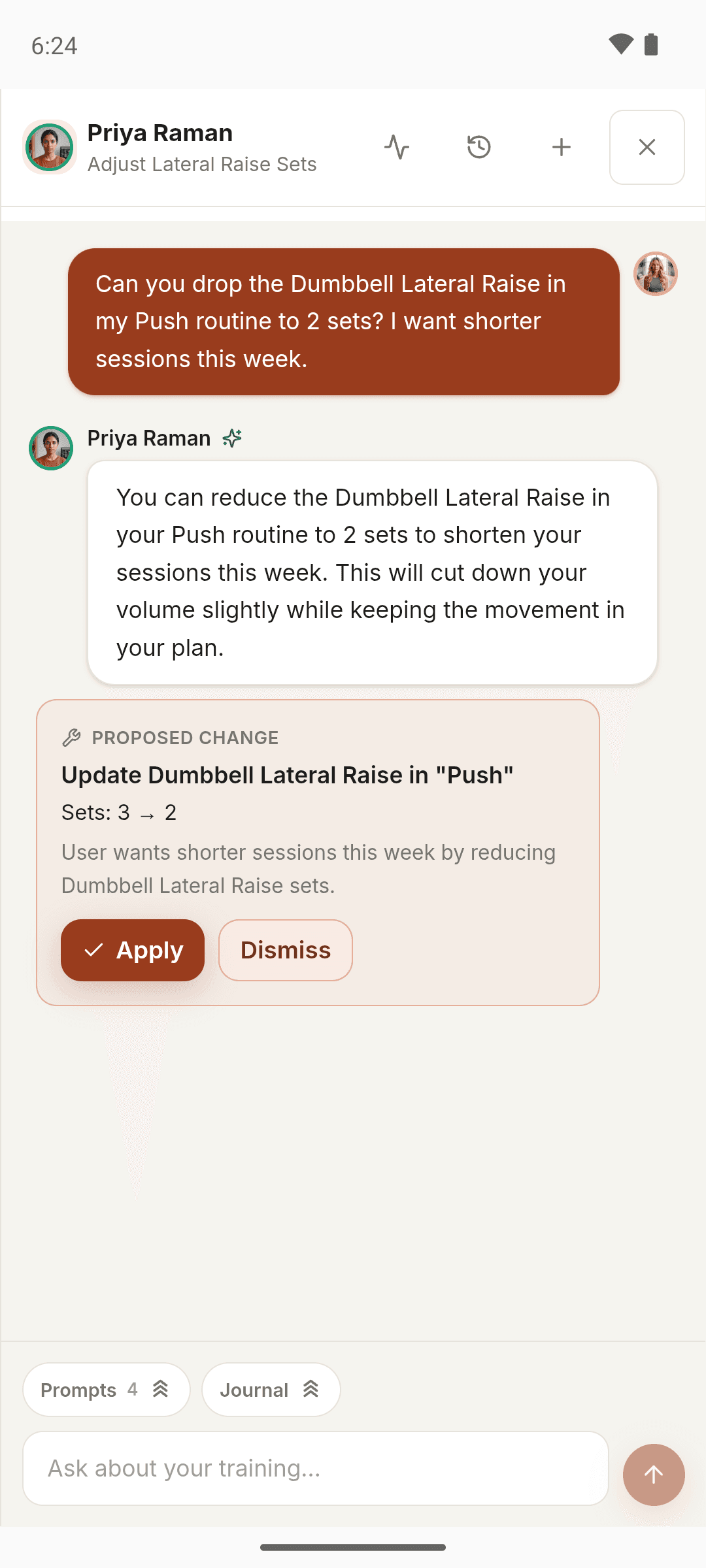
When you ask for a change, the coach can reply with up to three Proposed change cards. Each shows exactly what would change and a one-sentence reason, with Apply and Dismiss buttons. Nothing is saved until you tap Apply.
Cards can update a target in a routine, swap a movement in today’s session, change your weekly schedule, create or edit a routine, start a routine, adjust training settings such as rest timers, or turn a goal into a commitment. A full program card uses credits to build a preview, and nothing is saved until you add it. The coach can’t log or change your sets, edit past workouts, delete a routine, or put a workout on a date in your plan.
Know which questions it declines
The coach won’t give doses for medications or supplements, diagnose an injury, or advise on medication changes. Those questions get a short reply pointing you to a doctor or physio. If something hurts, its advice is always the same: stop the movement that aggravates it, scale back, and get it looked at if it doesn’t settle. It can still help you train around the problem.
Your coach may also check in on its own now and then, for example after a missed planned day or a new personal record. Check-ins are free to receive, and there are never more than one a day or three a week. You can turn off their notifications under Coach messages in notification settings.
Related Moodwell feature
Choose the coach who answers you
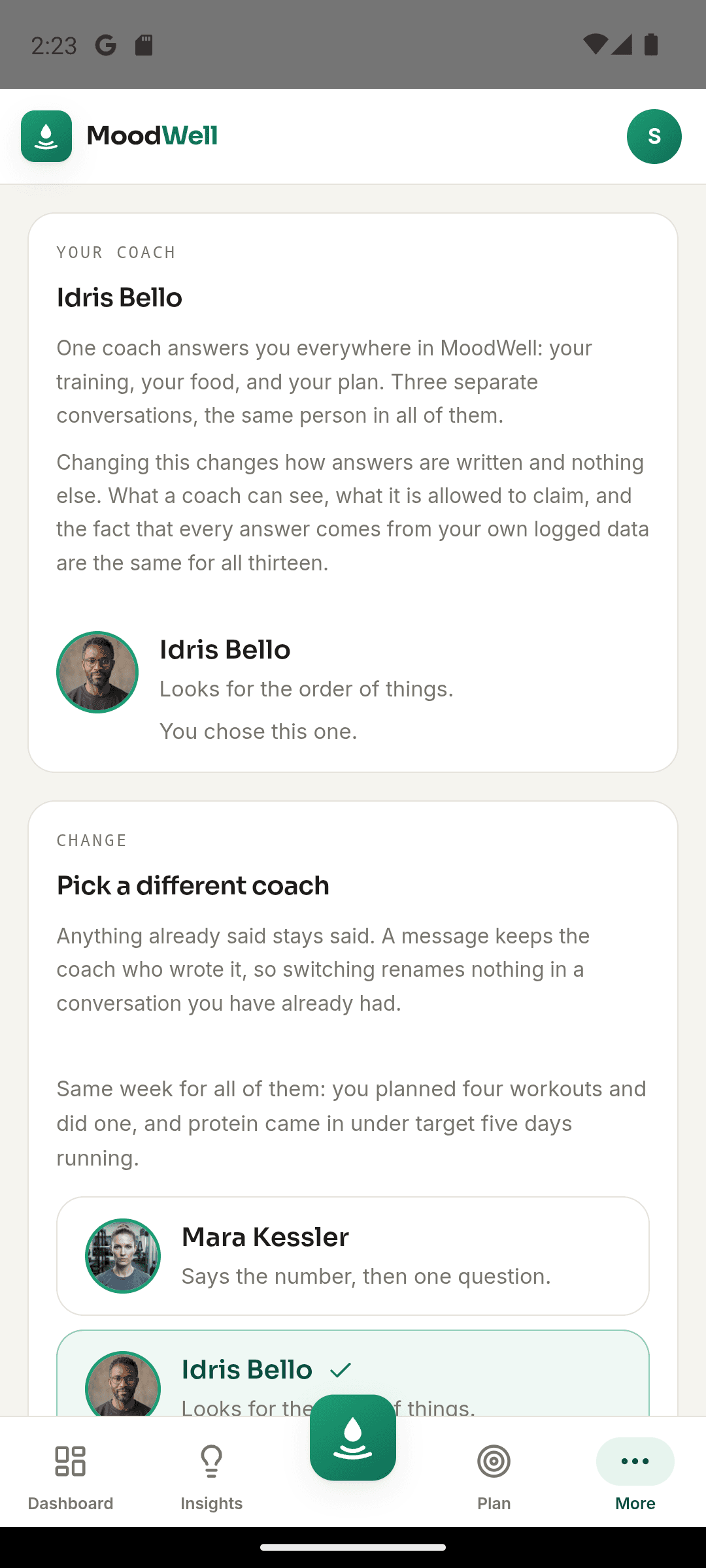
Meet all 13 AI coach personas and see how each one writes about your training.
Meet the AI coaches